3D Tilt effect (New)
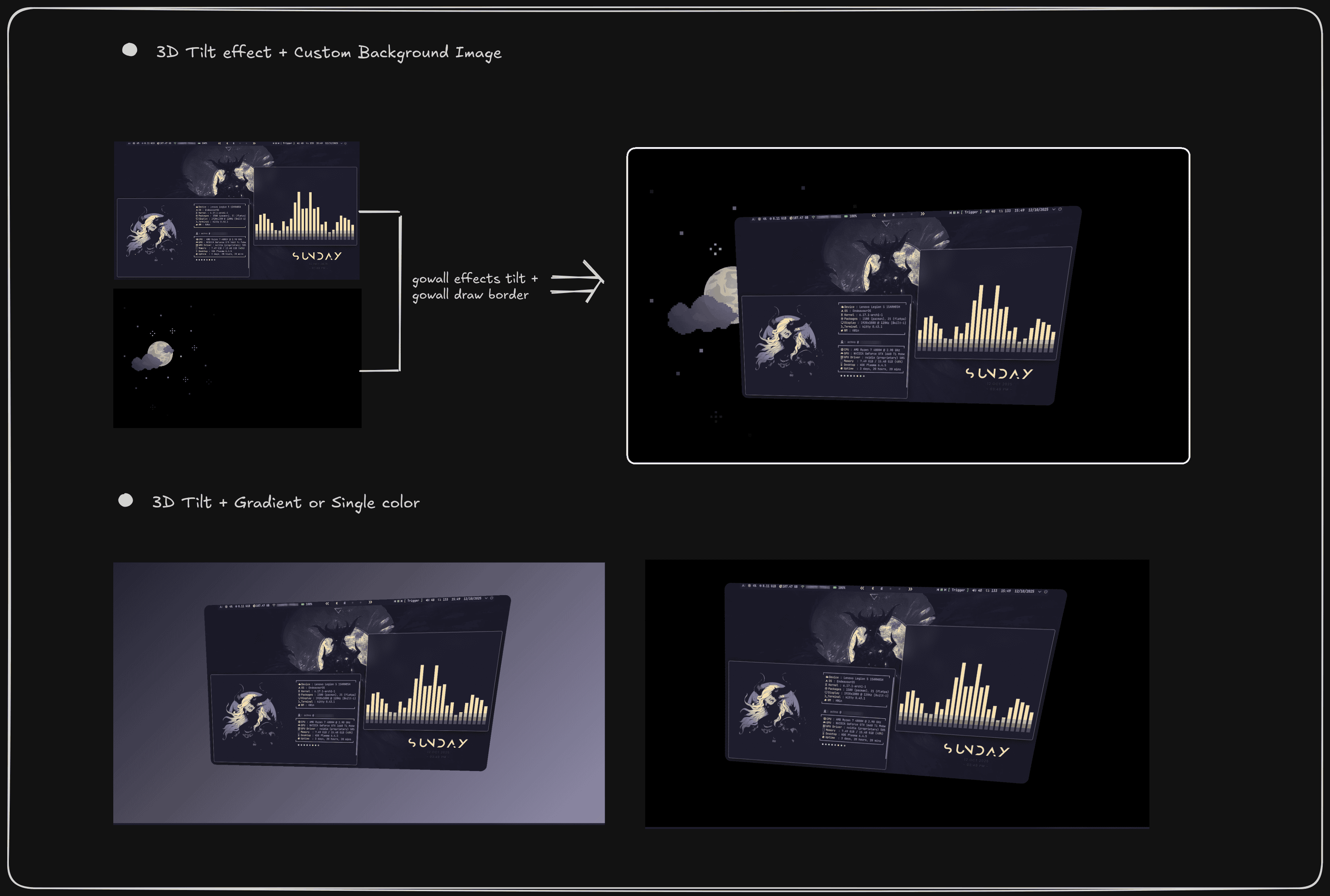
Gives your image that 3D tilt to one side effect. Also optionally specify the background color/gradient as well as corner radius if you want round corners.
I recommend using one of the 4 presets i made, though you can create your own custom tilt effect.
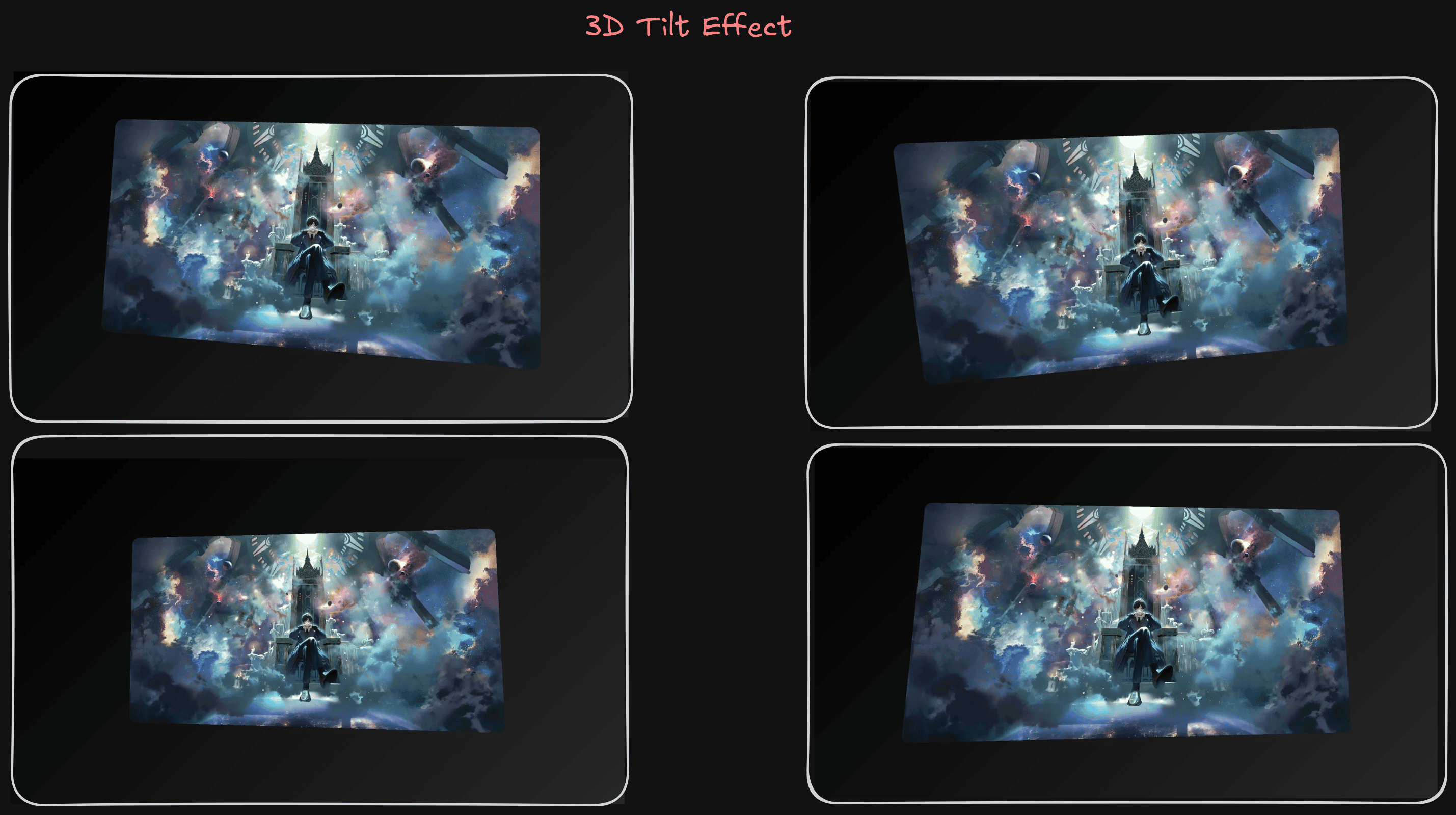
gowall effects tilt ~/Pictures/lotm.webp
# Use a preset
gowall effects tilt ~/Pictures/lotm.webp -p p1
# Use a preset and override the preset with some of your values, in this case the background gradient.
gowall effects tilt ~/Pictures/lotm.webp -p p1 -b #000000 -e #282828
# Create your own custom tilt
gowall effects tilt ~/Pictures/lotm.webp -x -10 -y 15 -z 3 -s 0.6 -r 40
# Set a custom Background image
gowall effects tilt img.png  -i bg_img.jpg -x -15


gowall effects tilt --dir ~/Pictures/Dir  --output ~/NewFolder
gowall effects tilt --batch img1.png,img2.png  --output ~/NewFolder
Usage & Options
You can start from a preset (-p) and then override anything you want with individual flags, or skip presets entirely and set every value yourself.
➤ Presets
With -p --preset you can use one of the built‑in presets p1–p4 for nice, ready-made combinations of tilt, scale, radius and background.
-
Background gradient/color
Add a background gradient via :
-b(or--bg-start) and-e(or--bg-end)gowall effects tilt ~/Pictures/lotm.webp -b "#000000" -e "#282828"If you want it to be a solid color then simply repeat the color for both the start and end.
gowall effects tilt ~/Pictures/lotm.webp -b "#000000" -e "#000000" -
Custom Background Image
Add a custom img via :
-i( or--bg-image)gowall effects tilt ~/Pictures/lotm.webp -i bg_img.png -
Corner radius
Specify the corner radius via :
-r(or--radius) in pixels (default is40) for rounded corners. -
Scale
By using (-s,--scale) you can control the scale factor for the image inside the 3D view (0.1–1.0, default is0.65).Smaller = smaller on the canvas; larger = bigger.
-
Tilt angles
-
-x/--tiltx: tilt on the X axis (up/down tilt), default5degrees
Positive = top edge tilts toward you; negative = top edge tilts away.
-
-y/--tilty: tilt on the Y axis (left/right tilt), default-8degrees
Positive = right edge tilts toward you; negative = left edge tilts toward you.
-
-z/--tiltz: rotation / Z‑axis tilt, default3degrees
Positive = clockwise; negative = counterclockwise
-